Blocks Overview & Usage
Subism sites are built from component Blocks that can be reused across pages (and sometimes sites). A block might be a an image gallery slider or a quote from a client.
What is a block?#
Blocks are simply components that consist of:
- Fields (Craft CMS)
- Template Code (Twig)
- Styling (SCSS)
- Front-end Functionality (JS)
Using Blocks#
There are 3 primary ways in which we can utilise a block within our pages:
- As an item that is part of a Block Builder field
- As a field placed directly on a Craft CMS Section (Single, Channel, Structure).
- As an item that is included directly within a template
The same block can be used across all of these approaches, even simultaneously, however the mechanism by which each method is implemented is different.
1. As an item that is part of a Block Builder field#
To use a block within a Block Builder we must first have a Block Builder field defined, and allow this field to render on a template.
The process to define and include a Block Builder is detailed on the Block Builder Documentation.
Once we have a Block Builder field defined and ready to go, the next step would be to add our desired block field to the Block Builder.
For this we can either create a new block, or include an existing block.
Creating a new block#
If the block you desire to use doesn't currently exist, you can create one by following the documentation on creating a new block.
To cover this briefly, creating a new block consists of creating our desired block fields, twig template, styling, and any required JS.
Once your block has been created you can continue to the next section to include an existing block.
Include an Existing Block#
In the Craft CMS Admin panel, navigate to Settings -> Fields and open our desired Block Builder field.
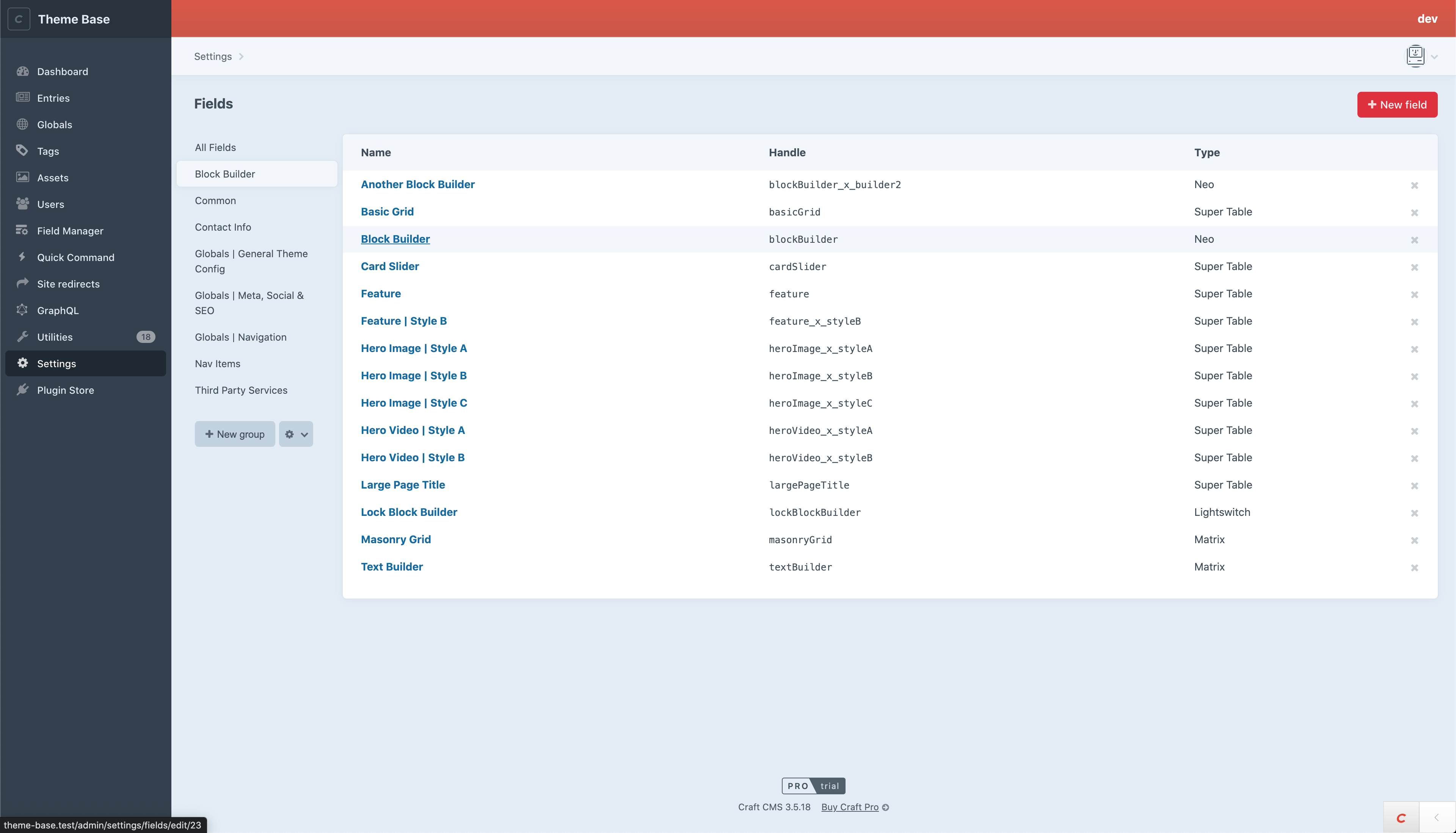
We must now add our block to the Block Builder field, using the Block Types sidebar:
Click the
+ Block Typebutton to add a new block typeEnter a name for our new Block Type, this will be the name shown the CMS users when they author content.
Now we need to enter the field handle. It is important that the field handle matches the name of the Twig Template, as we use the handle to auto-include the desired template.\ For our example screenshot below, we have set our field handle to
textBuilderas the Twig template we desire to use istemplates/_inc/components/blocks/textbuilder.twig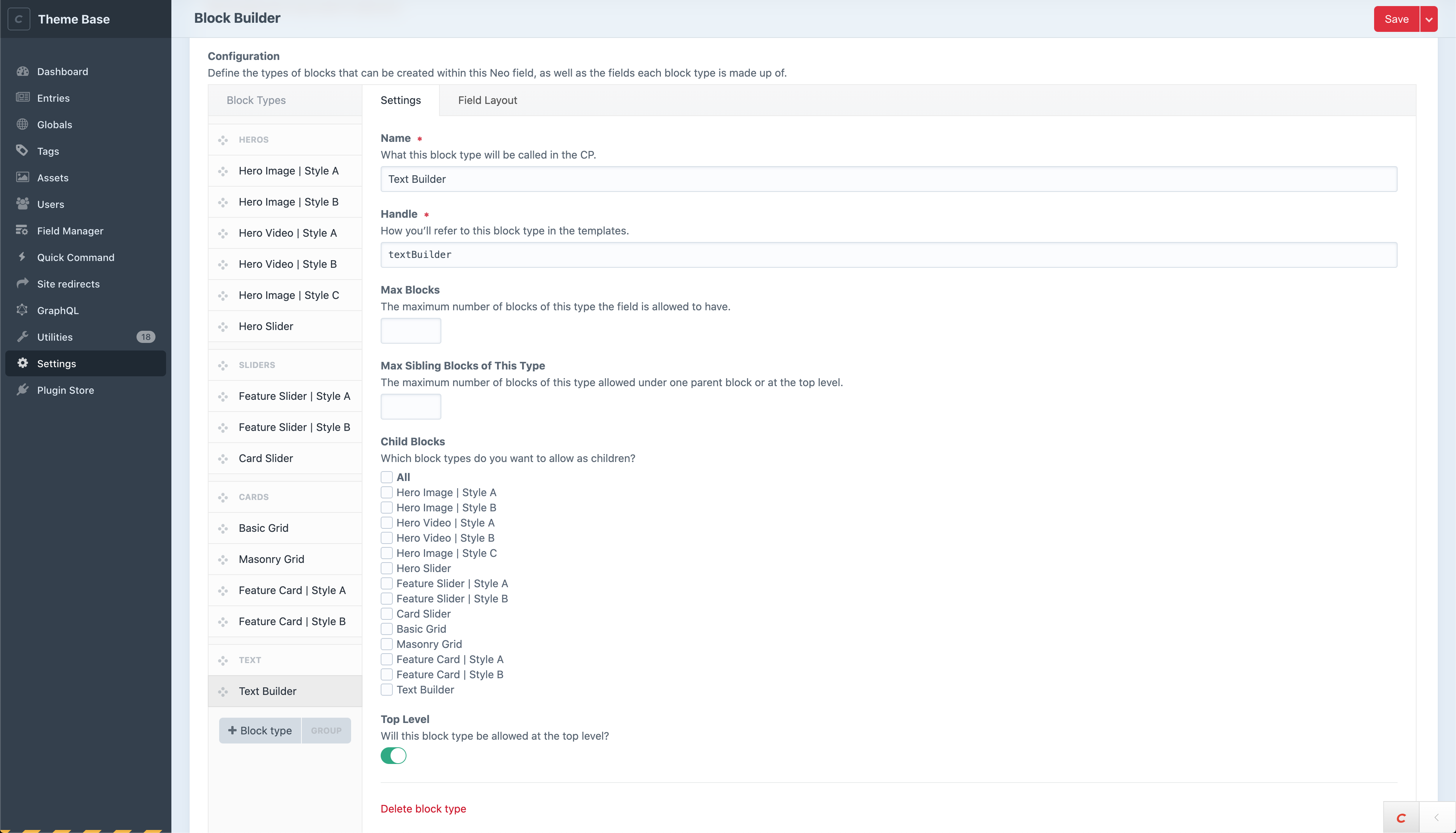
We now need to associate our new block type with its required field. To do this switch to the field layout tab, and drag the field for our desired block into a new fields tab.
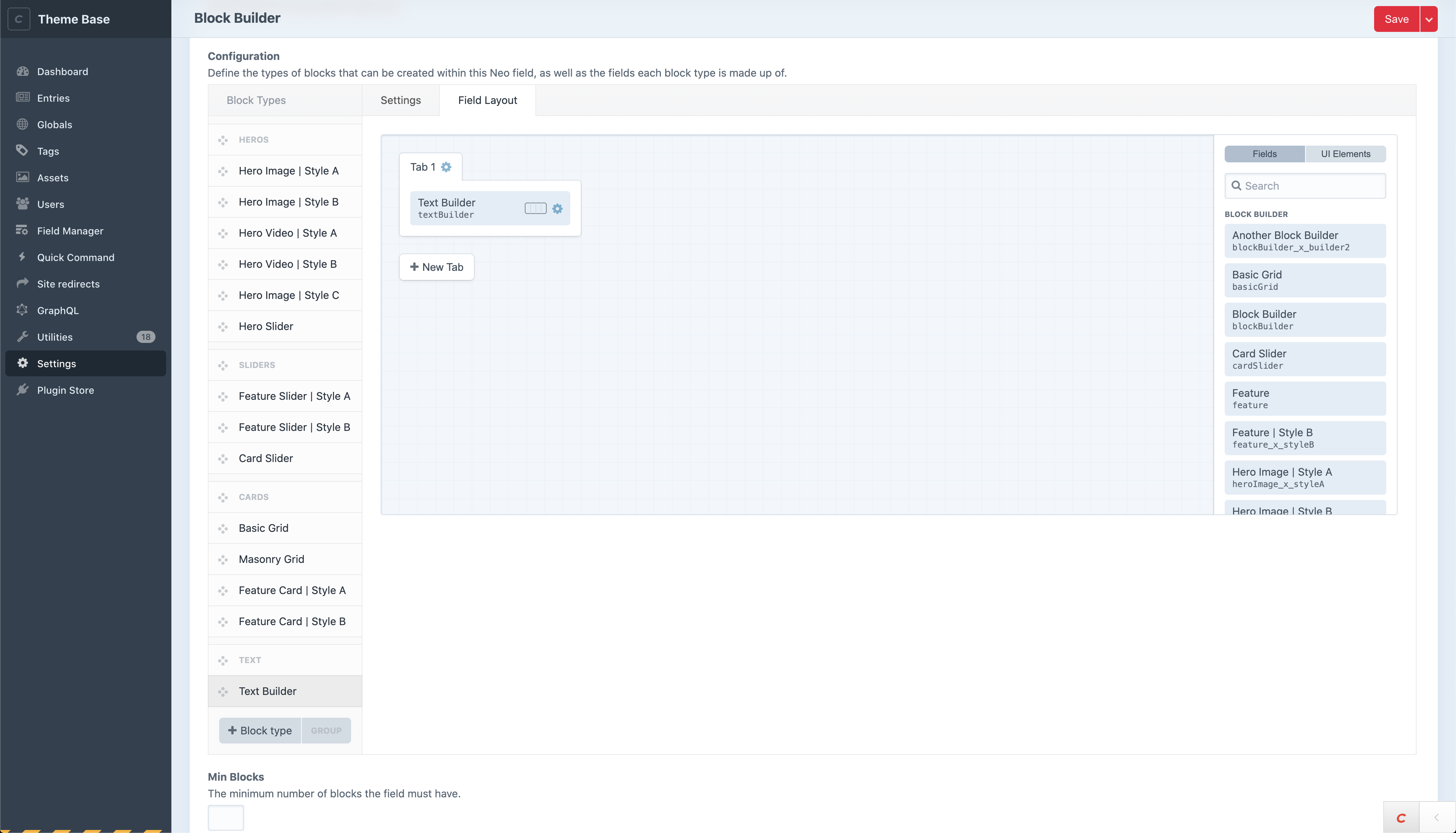
Our new Block type should now be configured. Save the changes to the Block Builder field, and navigate to our any entry for a section that that has our Block Builder Field assigned. We should now be able to add a new instance of our block type using the Block Builder add buttons on this entry.
2. As a field placed directly on a Craft CMS Section (Single, Channel, Structure).#
We have the ability to render blocks directly on a section, without manually including any block templates.
To do this we have put something together in Twig that we call the Auto Block Renderer.
If the template you are going to be using for your page doesn't include the Auto Block Renderer, include it within your template, at the place you'd like any blocks to render, using the following include statement:
After including auto-block-render.twig into a page, the Auto Block Renderer will look at all fields on the current entries entry type, and see if it can find twig components in _inc/components/blocks with filenames that match the field handle.
Found templates will be rendered to the page, with no additional hook up. This can be used with or without the Block Builder.
Similarly to using blocks with the Block Builder, we must first have a new block created. For instructions on this refer to the documentation on creating blocks.
Now you may navigate to your desired section in the Craft CMS Admin panel (Settings -> Sections -> Entry Type).
Drag any block fields you would like to use on your section from the right-hand bar into the Field Layout.
Blocks will be rendered on the page starting with the first Tab Group, top-to-bottom, and then move on to the next horizontal Tab Group, top-to-bottom, and so on.
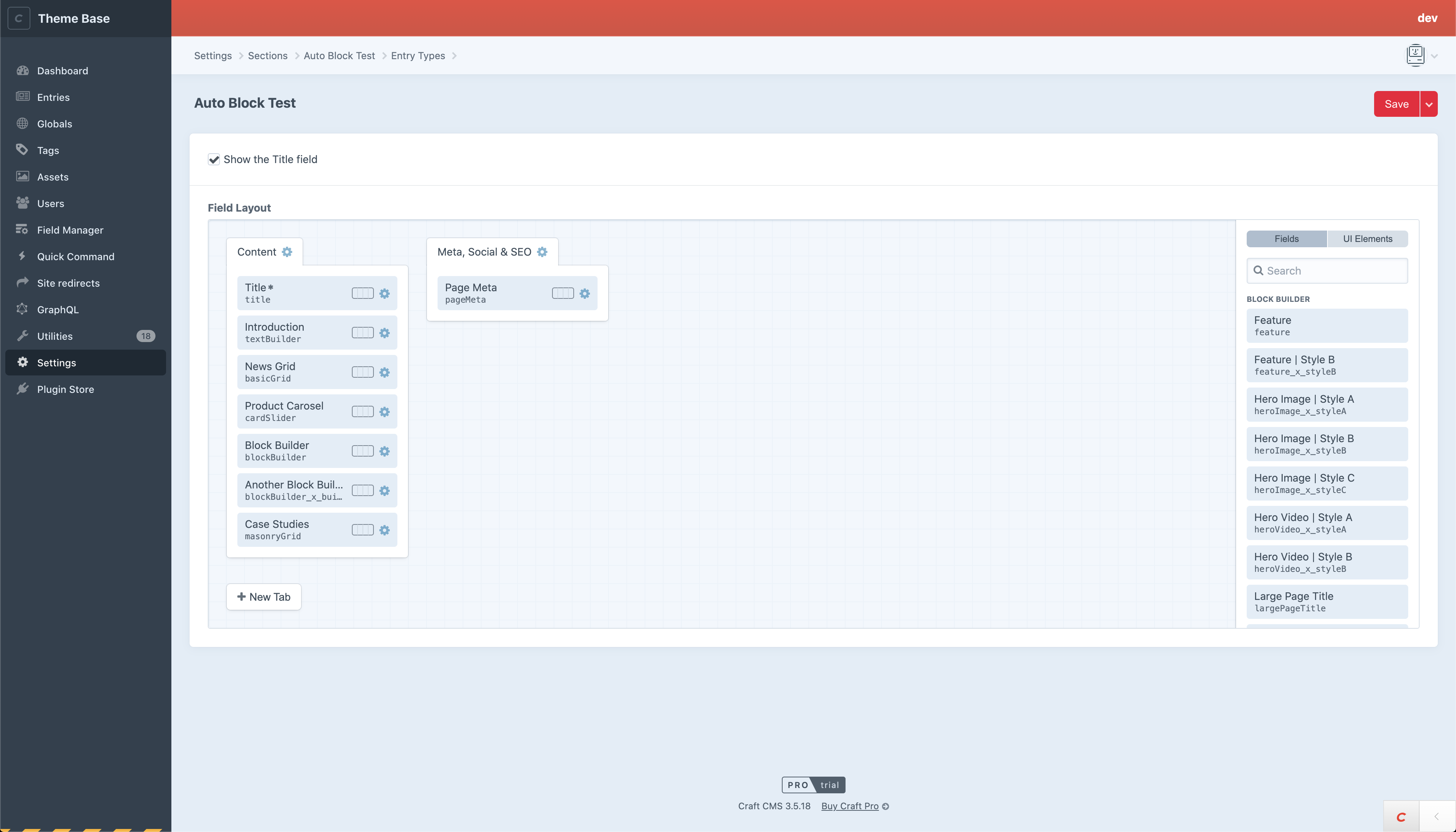
Navigate to any entry for your section, and fill in any block field values.
You should now be able to visit the entry on the sites front-end, and your blocks will automatically render, without adding any further template code.
E.g. By adding Hero Image, Text Builder and Block Builder to a section’s Entry Type we can create a page layout without writing any twig.
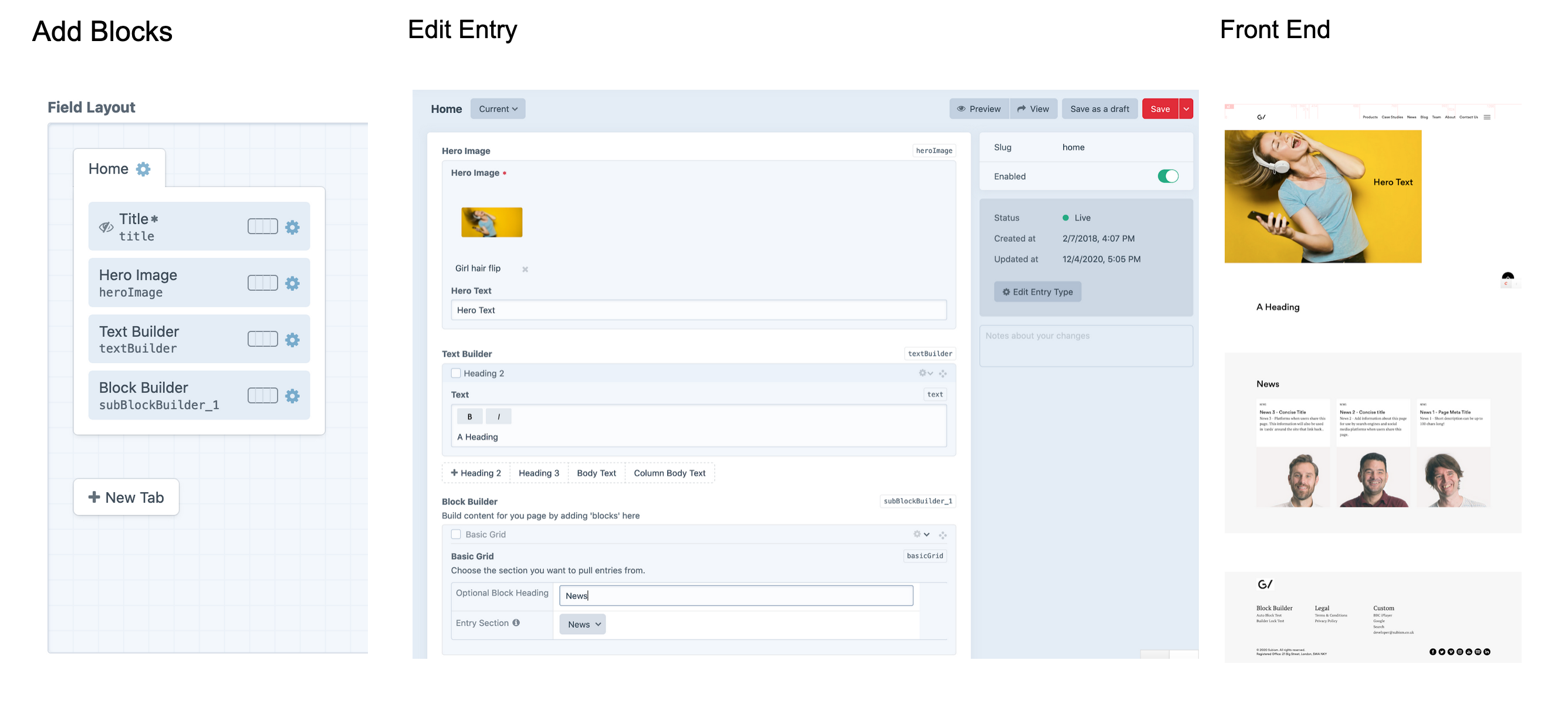
3. As an item that is included directly within a template#
There is no requirement to use blocks within the block builder, or with the Auto Block Renderer. We are able to take a more traditional Craft CMS approach, and include blocks directly within a template.
To do this, first Create a New Block, then add the field to any Craft CMS Section you desire to use the block on.
We can now open up the template that is associated with our section, and include the block in the same way we would any other Twig component.
One thing to note in the code example above, is that we pass our field through to the block using the data property on the include.